PRODUCT BACKLOG EXCEL TEMPLATE
This Template is prepared to manage your product backlog Items with, with below features
- Add your backlog item in excel
- Easy navigation in the form
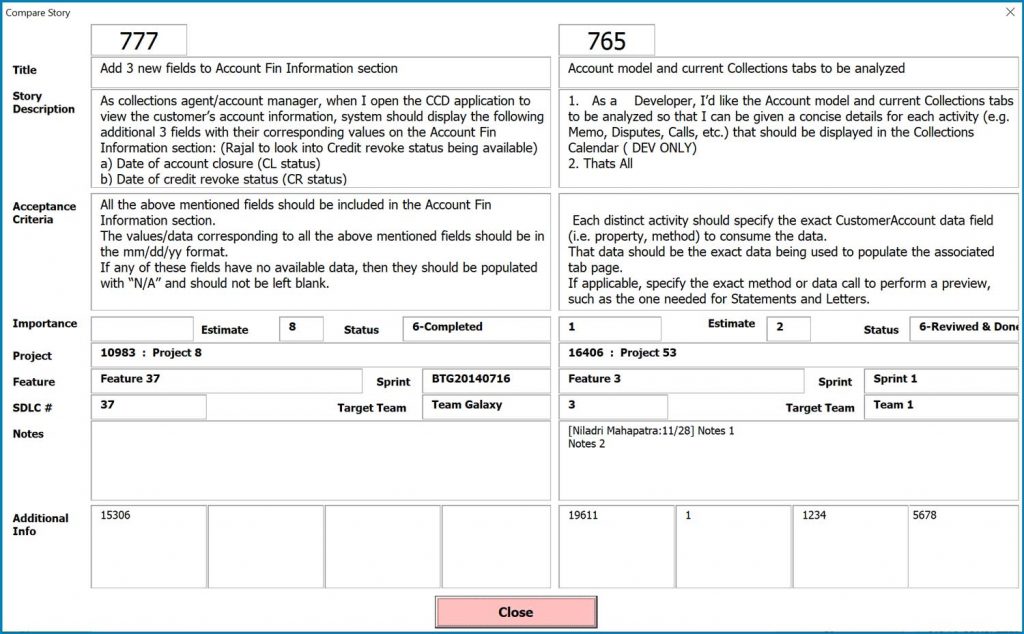
- Compare Stories
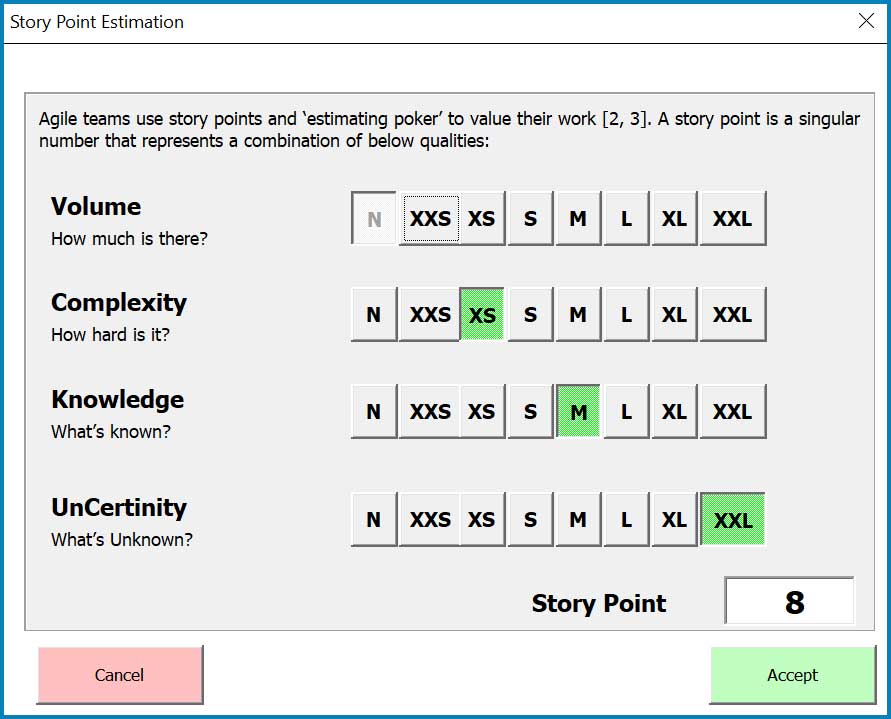
- Measure Story Points with Complexity Bucket
- Measure Story Points Story Point Factors
- Find new Story Points
- Watch the video to get the demo to know it in details
- Manage Epics and Status Master
- Manage Project Master
- Manage Frequent use Projects
Configuration
| Status | Max 8 Status can be configured |
| EPIC | You can Manage an Epic Master with Epic Name and ID |
| Feature Master | You can Manage Feature Master with Parent Epic ID and Feature ID along with a Feature Name |
| Complexity Bucket | Can Customize complexity Bucket factors. |
| There are 4 Categories for Complexity Bucket if you are using Complexity Bucket for Story Point Measure. | |
| Category 1 can have max 9 attributes, | |
| Category 2 can have Max 6 attributes, | |
| Category 3 can have max 4 attributes, | |
| Category 4 can have Max 3 attributes. | |
| Measurement of story Points using complexity bucket is just for your Idea, Relative sizing is the best way to measure your story Points. | |
| If you don’t need all the 4 categories, Remove the category heading, for example, you want to work on only 3 categories, remove all the values from Category 4 including the text “Category 4” | |
| If you insert more than permissible sub-item under the category, It will not be reflected in your form. | |
| You can change the name of the category for example “.NET Development” to “Java Development” or Category sub items for example “No of CI” to “No of class” or anything else that matters for you. | |
| If you want to reduce the number of sub items, just simply delete the item from the bottom. For example, if you want to have only 7 sub-items under Category Item, Remove the values at rows 10 and 11 for Columns A and B |
Limitations
Complexity Bucket has max fixed factors.
Max 8 Status for workflow
Watch the video tutorial to know how it works. The Video Tutorial is to target version 1 only
FAQ
Q1. Is this Template work in Google Sheets
We have not tested it. We believe as this template are using complex formulas and formats. It may create problems in google sheets
Q2. How to invoke the form
Go to Backlog, Select any row where you have Data, Press Ctrl+Shift+M
Q3. In case of issues where to get support
email at support@agiledigest.com
Q4. Where to update list of my Projects?
Inside Project tab.
Q5. Why there are two list of Projects
There are two section in the Project Tab, Keep your Most recent projects and all projects separately, so that you have option to select your project from less amount of item list.
Q6. Where to Update list of Epics
Under EPIC & Features Tab.
Q7. How to find a new available Story id?
Go to Backlog Tab, select Column A at first empty row at the bottom of all available data. Press “CTRL + SHIFT + S” it will check through all available values and give any missing story id or next possible story id. If your active selected cell already have some value, it will show the new id in a message box instead of inserting into your cell.
Q8. Please explain more about the Complexity Bucket?
Where Can I get a Demo of this backlog how it works Please watch the video from the sidebar.
Q9. Can I have Less than 8 Status?
Yes-Remove the status from bottom that you don’t Need, Don’t remove the value from Column F under status tab
Video Tutorial
Download Brochure
Gallery